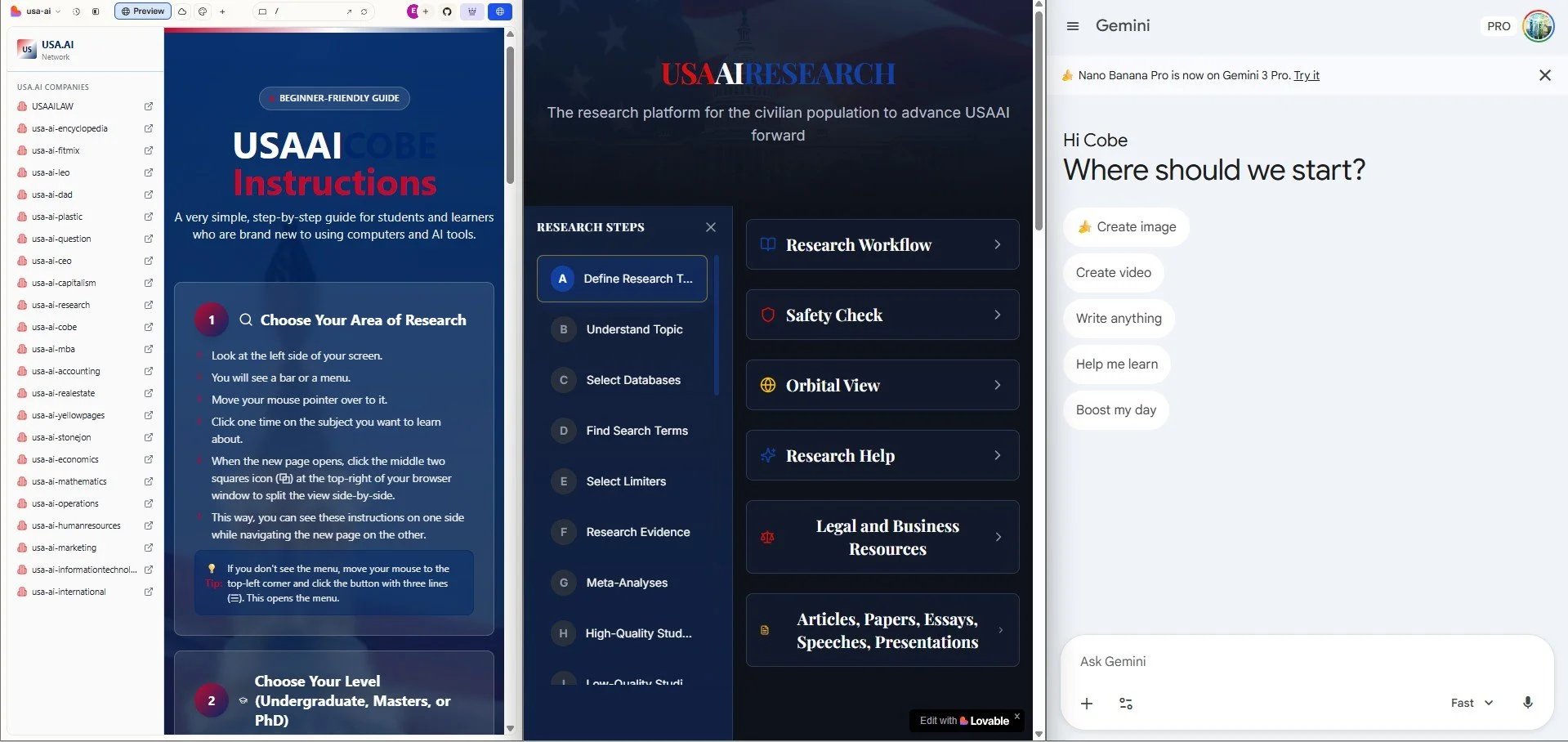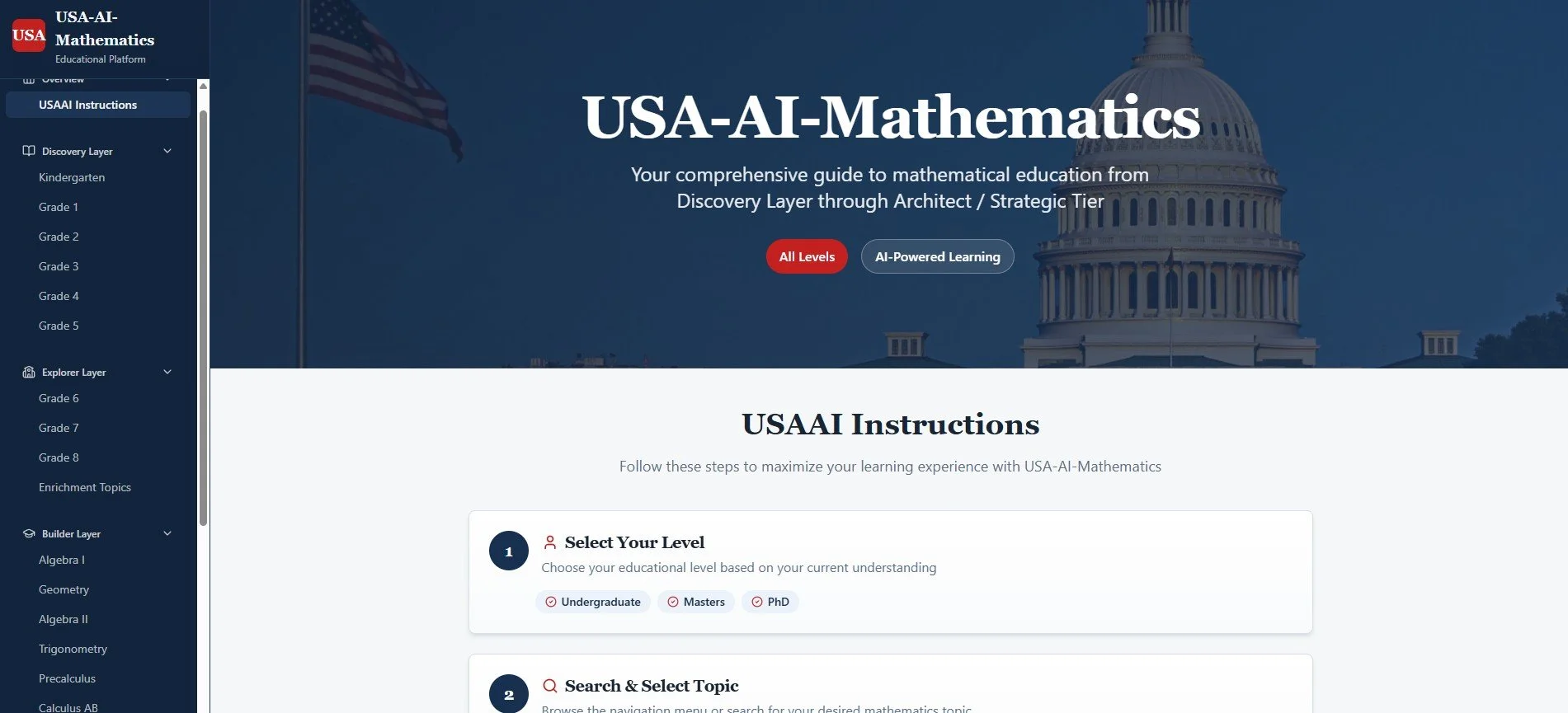



USAAI Instructions
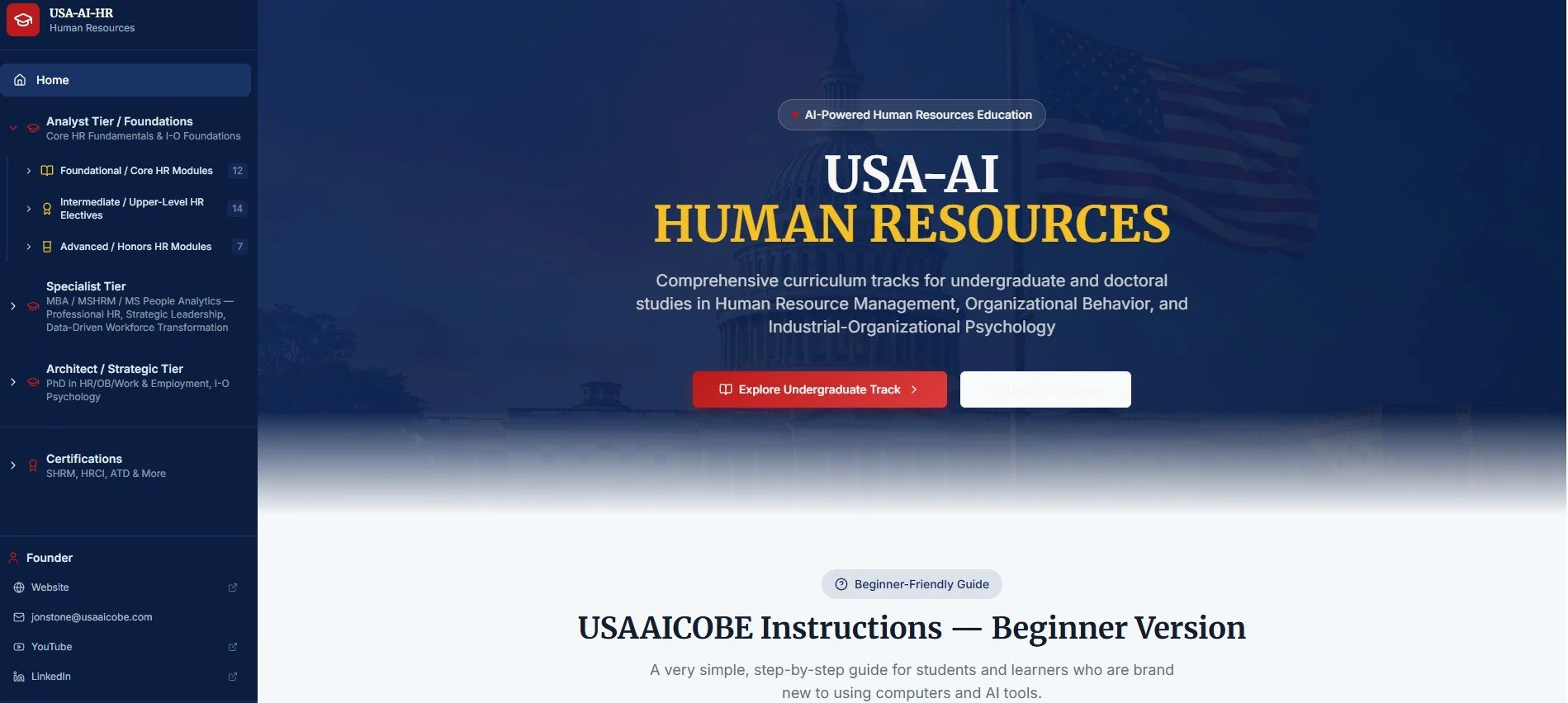
A very simple, step-by-step guide for students and learners who are brand new to using computers and AI tools.
1. Choose Your Area of Research
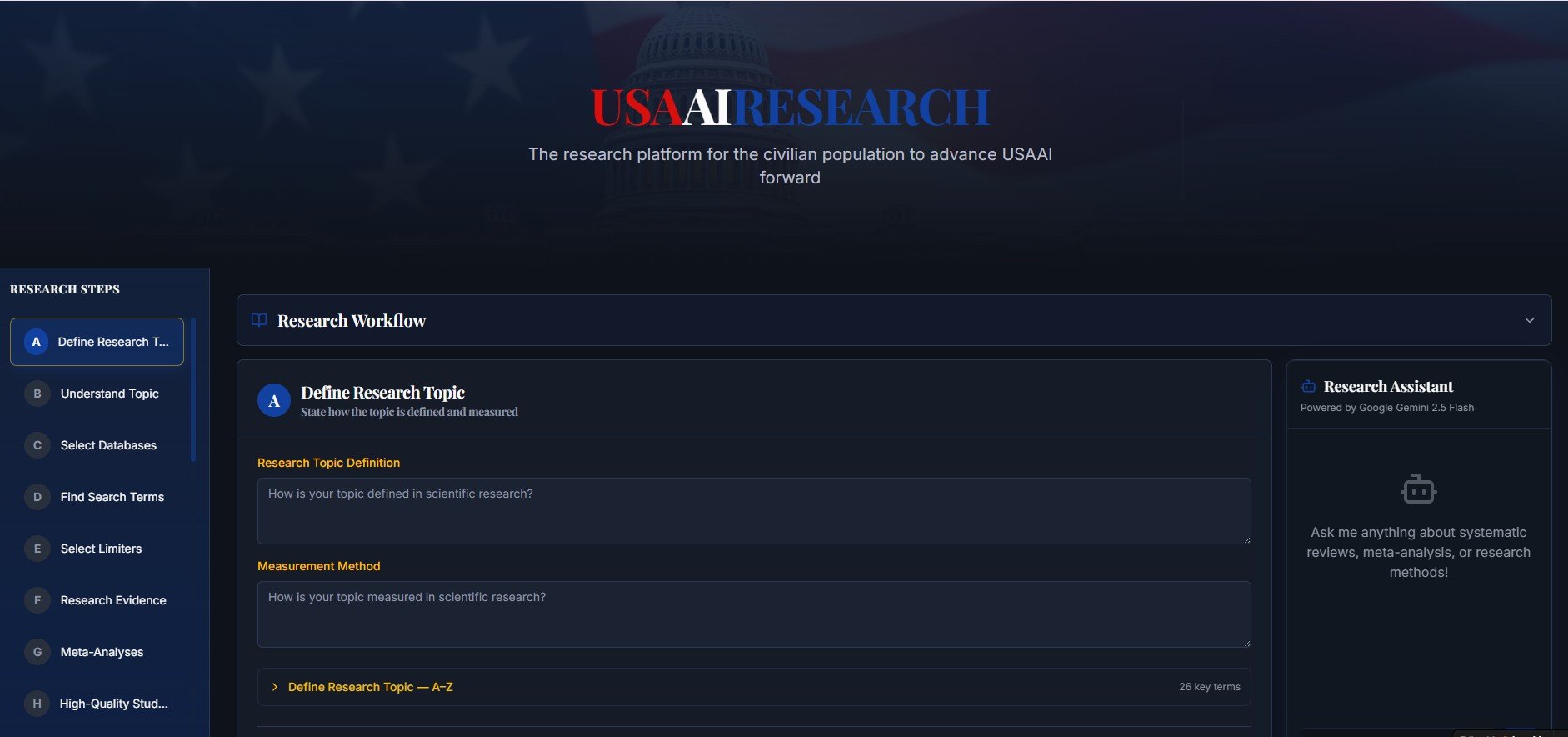
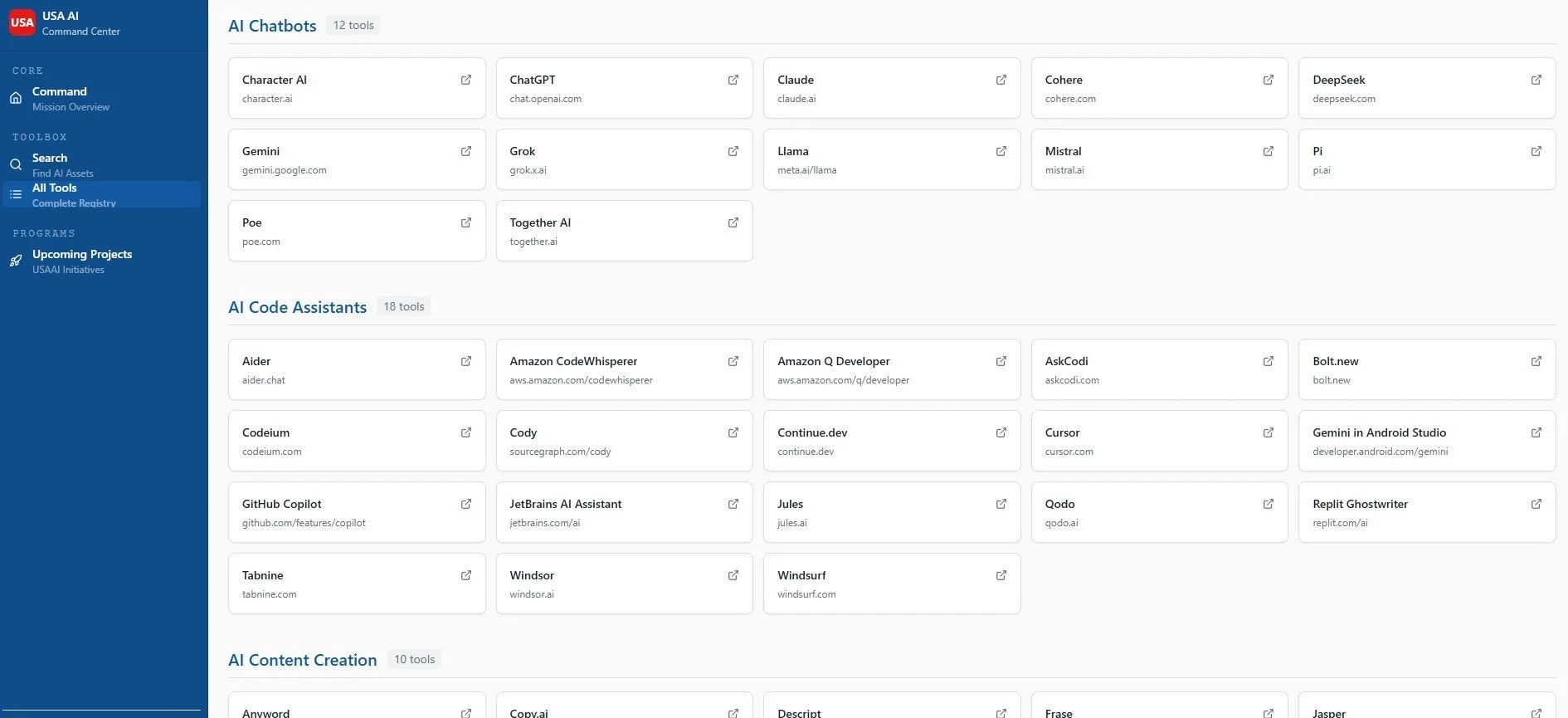
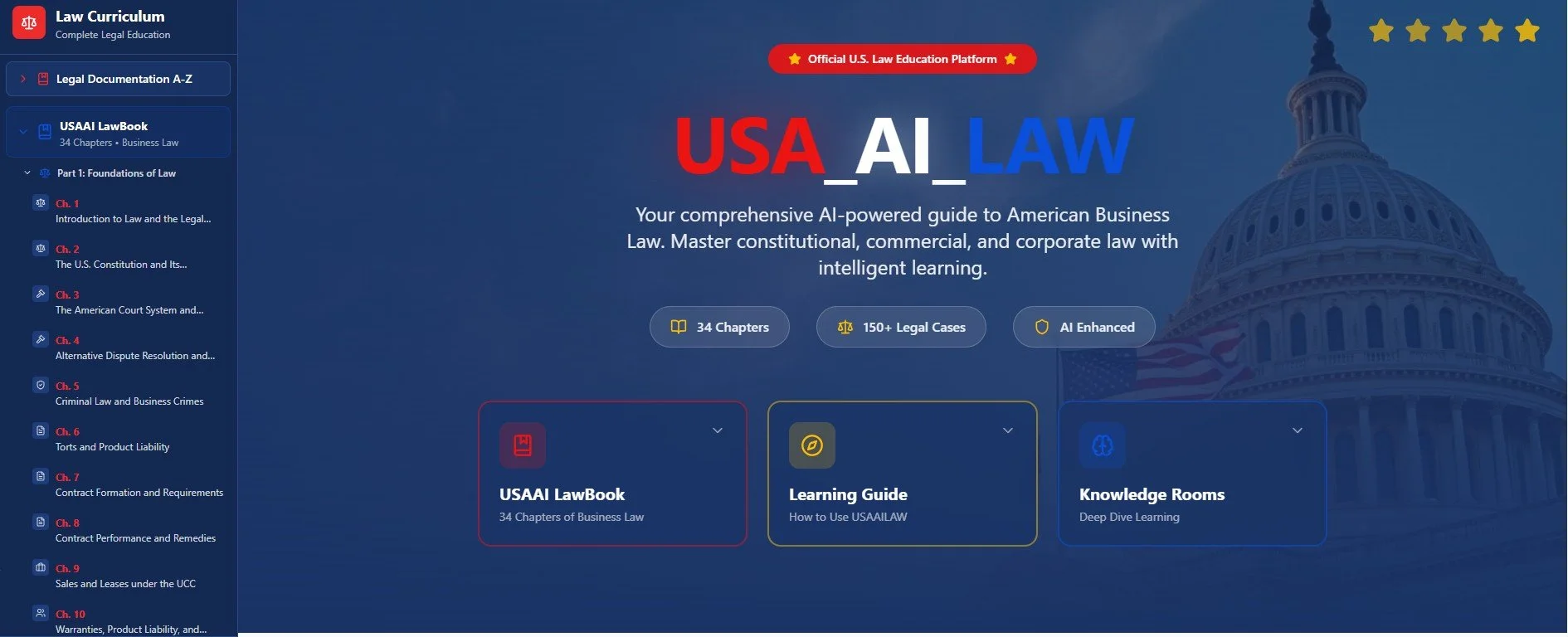
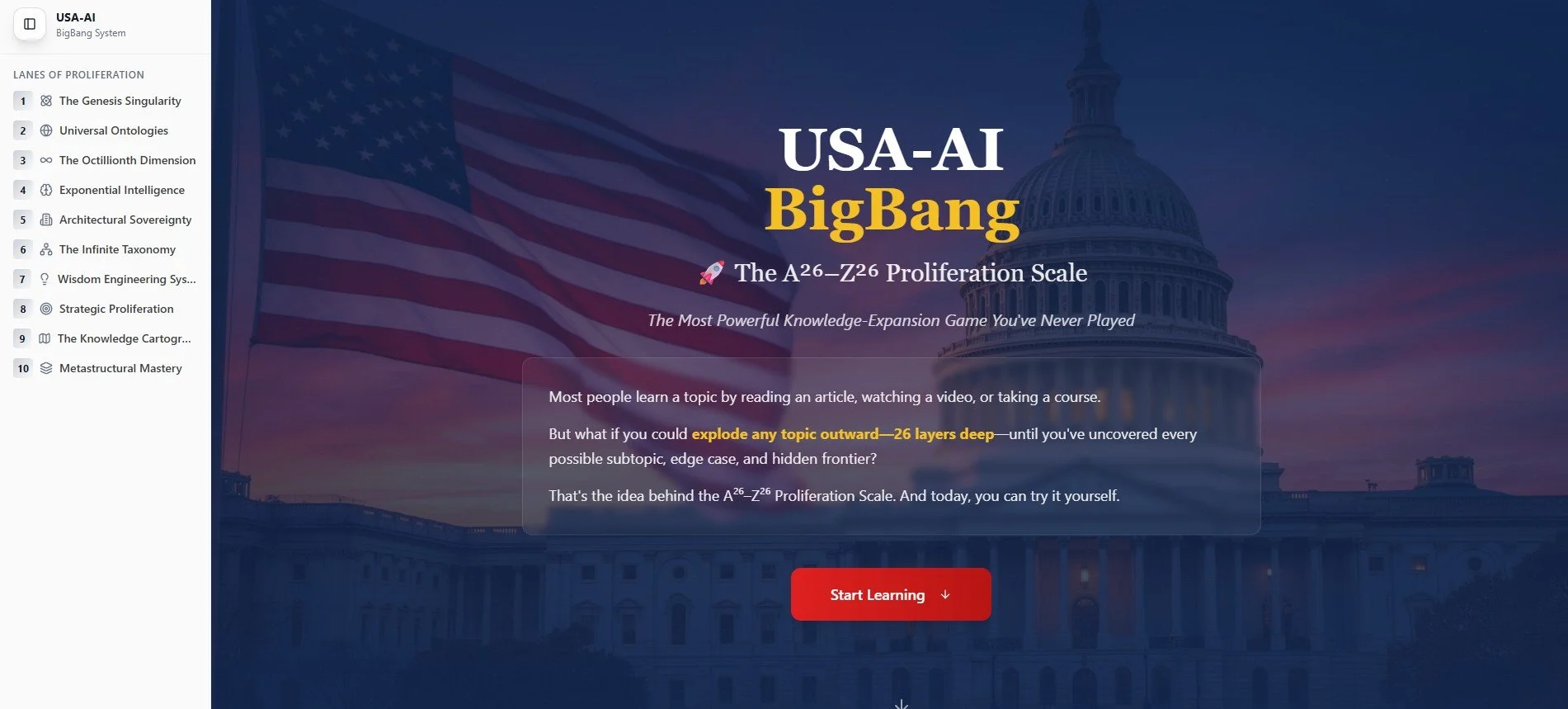
Look at the left side of your screen.
You will see a bar or a menu.
Move your mouse pointer over to it.
Click one time on the subject you want to learn about.
Tip: If you don’t see the menu, move your mouse to the top-left corner and click the button with three lines (☰). This opens the menu
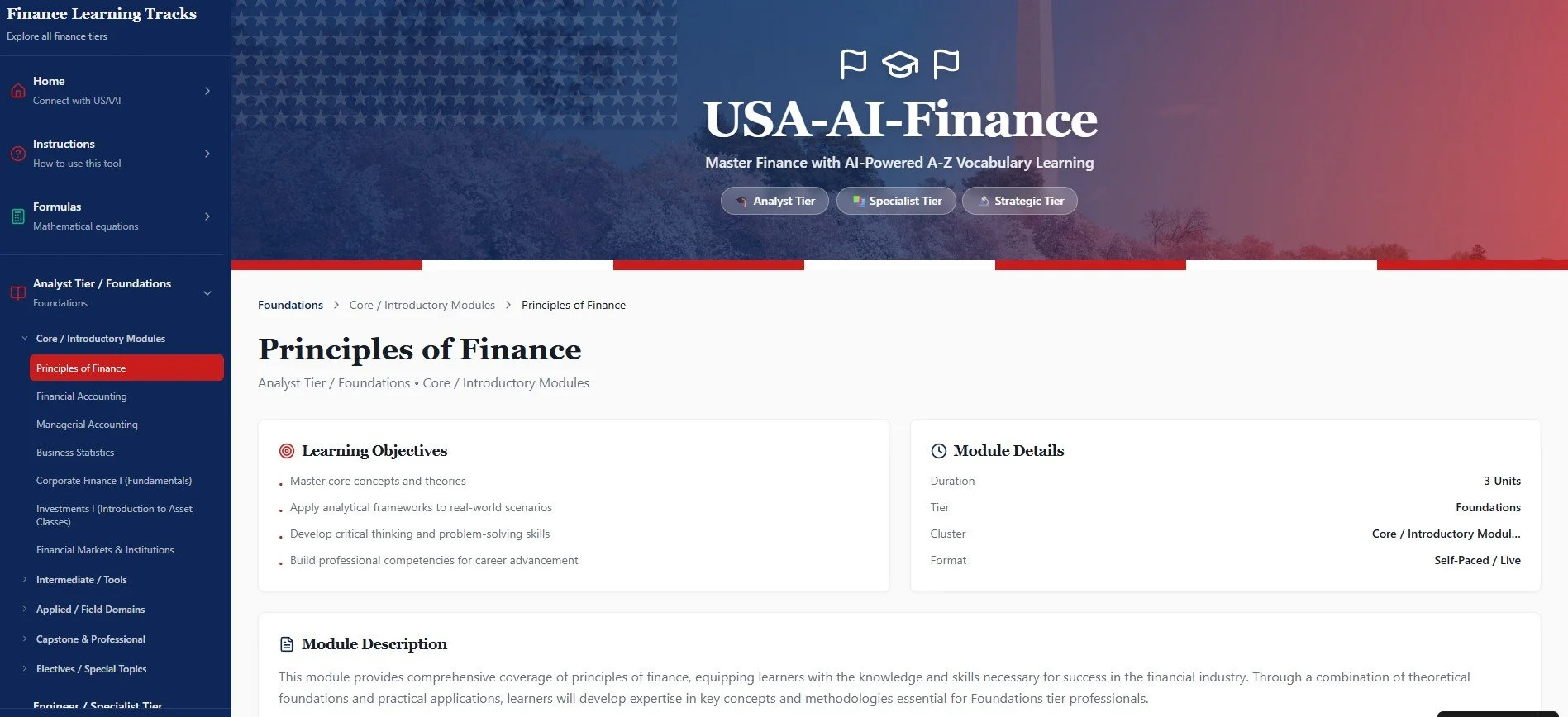
2. Choose Your Level (Analyst, Engineer, or Architect)
A list of levels will appear.
Move your mouse to the level you want.
Click it one time.
This tells the system how advanced your learning should be.
3. Pick a Topic
Scroll down using the small wheel on your mouse (roll it gently toward you).
– OR move the mouse pointer to the side of the screen and drag the scroll bar up or down.Find the topic you want to learn.
Click it once to open it.
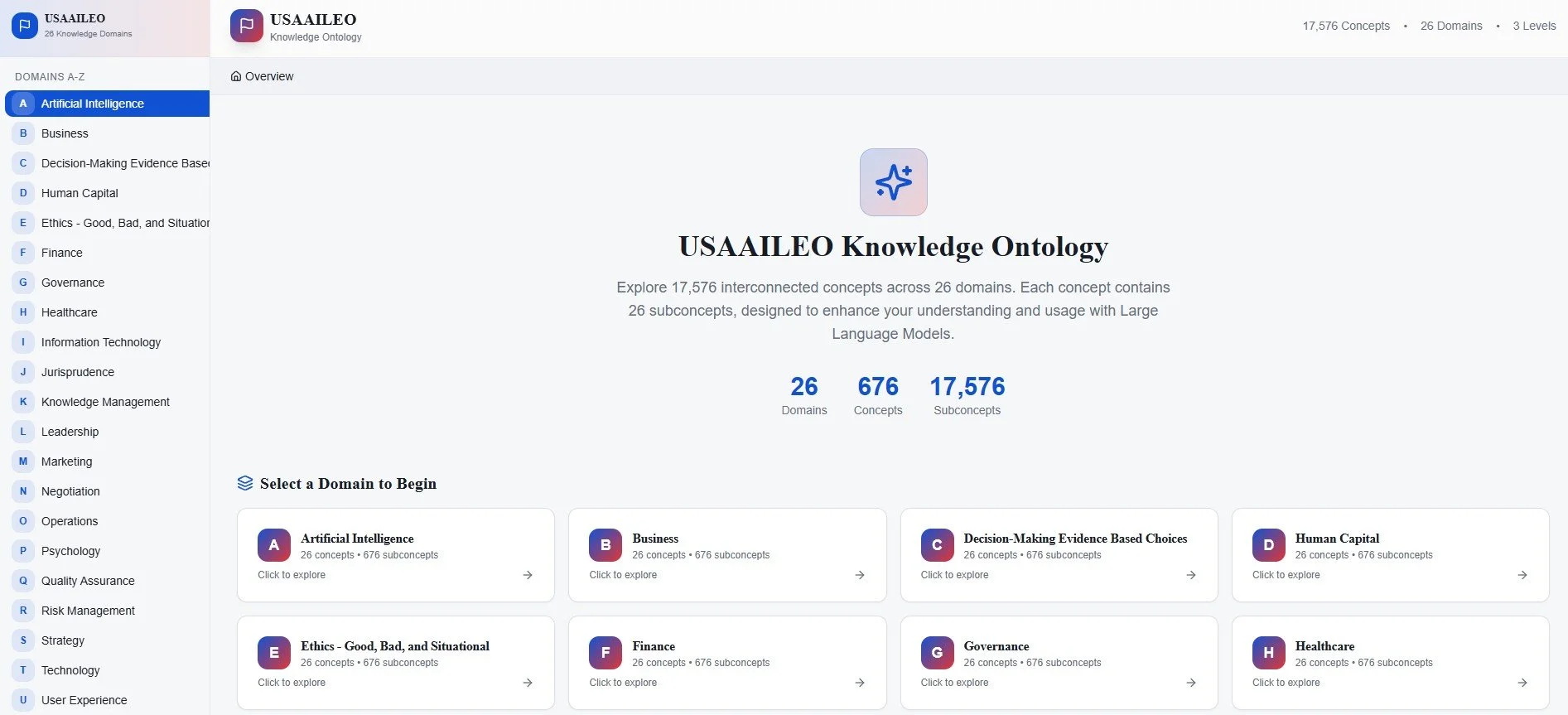
4. Copy the A–Z Letters
You will see a list that goes from A to Z.
To copy it:
Move your mouse to the start of the text.
Hold down the left mouse button and drag across the text until it all turns blue.
Let go of the mouse button.
On your keyboard, hold Ctrl and press C (this copies the text).
If you’re on a Mac, hold Command ⌘ and press C.
5. Paste Into Your AI Assistant
Open a new window or tab for your AI tool (ChatGPT, Gemini, Claude, Meta AI, Perplexity, or Grok).
To open a new tab, press Ctrl + T on your keyboard.
Click inside the box where you normally type.
Press Ctrl + V to paste the A–Z content.
(Mac: Command ⌘ + V)
Press Enter to send it.
6. Read, Learn, and Ask Questions
Scroll slowly through the AI’s reply.
Read the explanations.
If something confuses you, click the typing box again and ask a question like:
“Can you explain this more simply?”
“Can you give an example?”
“What does this mean?”
The AI will help you understand step by step.
7. Save Your Learning to Google Drive
Save Your Learning (Choose Where You Want)
You may want to keep what you learned so you can read it again later.
You can save it in many different places—choose what feels easiest for you.
First: Copy What You Want to Save
Move your mouse to the start of the text you want.
Hold down the left mouse button and drag until the text turns blue.
Let go of the mouse.
On your keyboard:
Windows: Hold Ctrl and press C
Mac: Hold Command ⌘ and press C
Now Choose Where to Save It
You can paste your learning into any of the options below:
Option A: Google Drive (Most Common)
Open a new tab and go to drive.google.com
Click New → Google Doc
Click inside the document
Press Ctrl + V (or Command ⌘ + V)
Google saves automatically
Option B: Microsoft Word
Open Microsoft Word
Click Blank Document
Click inside the page
Press Ctrl + V (or Command ⌘ + V)
Click File → Save As and choose where to save it
Option C: Notes App (Quick & Simple)
Open Notes (Mac, iPhone, or Windows Notes)
Create a new note
Paste the text inside
It saves automatically
Option D: Email It to Yourself
Open your email
Start a new message
Paste the text into the email
Send it to yourself
You can always find it later in your inbox
Option E: Folder on Your Computer
Right-click on your desktop or in a folder
Choose New → Text Document
Open it
Paste the text
Save the file
💡 Tip:
There is no wrong place to save your learning.
The best place is the one you will remember and feel comfortable using.
Core Idea to Remember
Learn → Save → Revisit → Grow
Select the part of the conversation you want to save (same copy steps as above).
Open Google Drive in another tab (drive.google.com).
Click New → Google Doc.
Click inside the document.
Press Ctrl + V (or Command + V) to paste everything.
Google saves automatically, so you’re all set.
Choose Your AI Assistant
You can paste your A–Z system into any of these AI tools:
ChatGPT — https://chatgpt.com
Gemini — https://gemini.google.com
Claude — https://claude.ai
Meta AI — https://meta.ai
Perplexity — https://www.perplexity.ai
Grok — https://grok.com